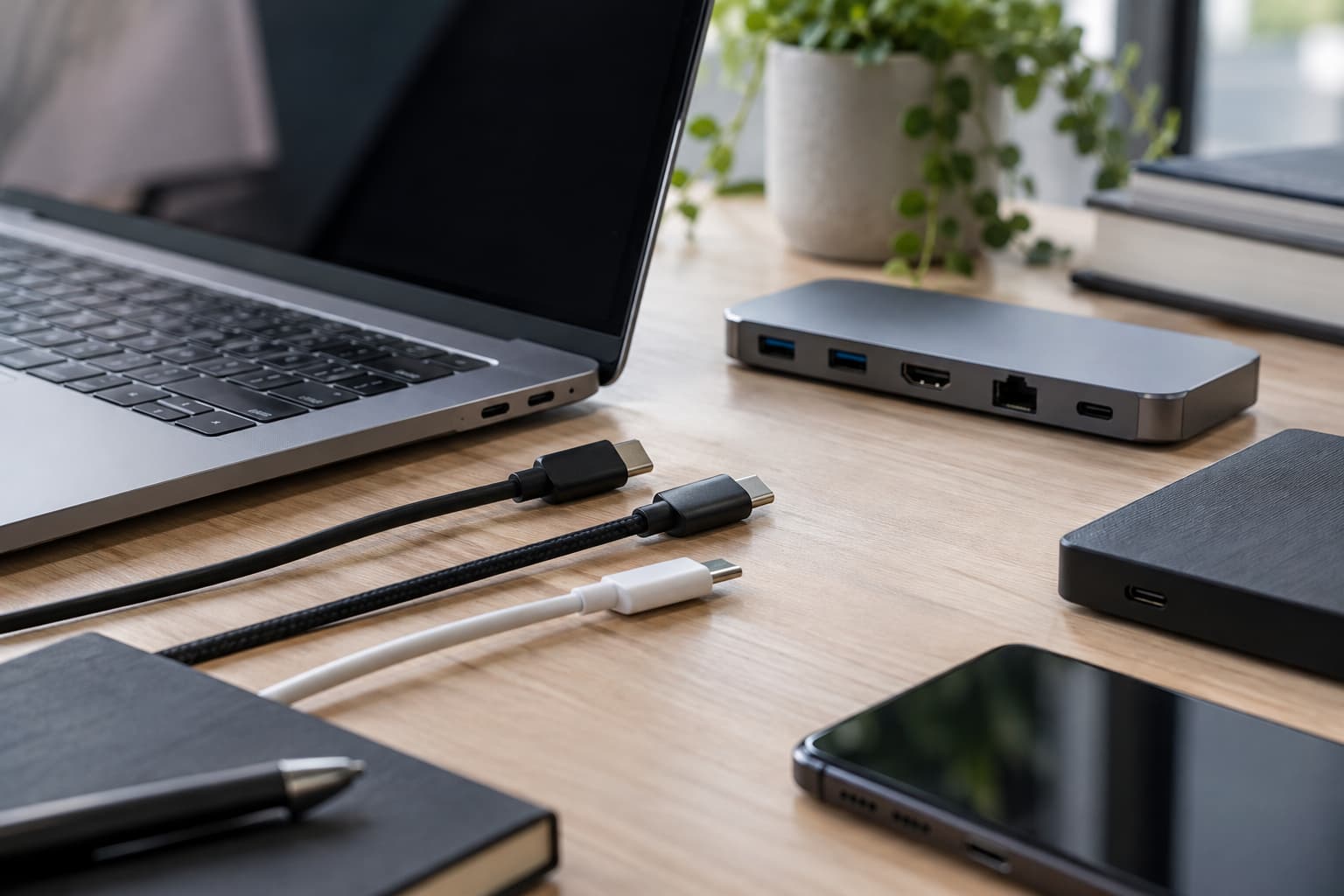
USB-C has become the standard connector for modern laptops, smartphones, tablets, monitors, and external storage devices. Its compact design makes connecting accessories easier, but the familiar oval shape hides significant technical differences. Two laptops may have identical-looking USB-C ports, yet only one can connect to a high-resolution monitor or transfer large files at maximum speed. Even charging performance can vary depending on the device, cable, and power adapter. These differences often become apparent only after someone purchases an expensive docking station or discovers that a new accessory does not work as expected. Understanding the technologies behind USB-C can prevent compatibility problems and unnecessary spending.
The Same Connector Can Support Different Technologies
The most important distinction is that USB-C describes the physical connector rather than a particular data transfer standard. Manufacturers can use the same connector for several technologies, including USB 2.0, USB 3.x, USB4, and Thunderbolt. As a result, a USB-C port on an inexpensive laptop may support only basic data transfers, while another port on a professional workstation handles external displays, high-speed storage, and charging simultaneously. Both accept the same connector shape, but their underlying capabilities are different. This explains why an accessory that works perfectly with one computer may provide only limited functionality when connected to another.
The situation becomes more confusing because not every manufacturer clearly identifies the capabilities of individual ports. Some computers have several USB-C connections with different specifications, even though their appearance is identical. One port might support charging and video output, while another handles only data transfers. Small symbols beside the connectors sometimes provide clues, but they do not always communicate every supported feature. The most dependable source of information is the manufacturer’s technical documentation, which should specify the data standard, charging support, and available video output capabilities for each connection.
Data Transfer Speeds Depend on the Entire Connection
USB-C can support substantially different data transfer rates. USB 2.0 operates at a theoretical maximum of 480 Mbps, while newer USB technologies offer signaling rates of 5, 10, 20, 40, or even 80 Gbps. These numbers represent different technological capabilities rather than the speed guaranteed whenever a USB-C cable is connected. For example, transferring a large video project to an external SSD can take considerably longer through a USB 2.0 connection than through a USB 10 Gbps connection. The difference becomes especially noticeable when moving hundreds of gigabytes of photographs, videos, or backup files.
However, the port alone does not determine performance. The external drive, cable, computer controller, and storage hardware must also support the intended transfer speed. Connecting a fast SSD to a slower USB port limits the entire connection to the available bandwidth. Similarly, a cable designed primarily for charging may support only basic data rates, even when the connected devices are capable of much faster transfers. Actual file transfer speeds are also lower than theoretical signaling rates because of protocol overhead and storage limitations. Users should therefore examine the specifications of every component rather than relying on the USB-C connector’s appearance.
USB4 and Thunderbolt Introduce Additional Differences
USB4 and Thunderbolt extend the capabilities available through USB-C, particularly for high-speed storage and external displays. USB4 supports advanced data transmission and allows certain protocols to share the connection, but its features vary according to the implemented version and hardware. Thunderbolt follows additional certification requirements. Thunderbolt 4, for example, requires 40 Gbps connectivity and supports demanding display configurations, including dual 4K displays on certified computer systems. Thunderbolt 5 increases bandwidth to 80 Gbps in both directions and can allocate up to 120 Gbps in one direction for suitable display-intensive workloads. These features are valuable when connecting multiple monitors, fast external drives, and professional docking stations. Nevertheless, a laptop advertised as having USB4 should not automatically be assumed to support every Thunderbolt feature. Compatibility depends on the precise specifications of both the computer and the accessory.
External Monitors Reveal Hidden Compatibility Problems
External displays are among the most common sources of USB-C confusion. Many portable monitors and docking stations rely on DisplayPort Alternate Mode, which allows compatible USB-C connections to carry video signals. Other advanced connections use video tunneling through USB4 or Thunderbolt. However, an ordinary USB-C port does not necessarily support either approach. A laptop may successfully recognize an external hard drive while displaying nothing when connected to a monitor through the same port. This does not automatically indicate a defective display or cable. The computer may simply lack the video output functionality required by that particular accessory.
Even when a USB-C port supports video output, the available resolution and refresh rate depend on several additional factors. The graphics hardware, connection bandwidth, docking station, cable, and monitor must all support the intended configuration. A dock advertised as supporting two 4K displays might deliver different results depending on the connected laptop. Some docking stations use DisplayLink technology, which transmits compressed display information through USB data and requires compatible software. This differs from native video output and introduces its own performance considerations. Before purchasing a monitor or dock, users should check the supported display configurations for their specific computer model.
Charging Power and Cable Ratings Matter Just as Much
USB-C charging is another area where appearance can be misleading. Small accessories may require only a few watts, while powerful laptops need substantially more electricity. USB Power Delivery allows compatible devices and chargers to negotiate suitable voltage and current levels. The specification supports charging configurations reaching 240 watts, but only when the charger, cable, and connected device support the necessary requirements. A 100-watt charger does not force every connected device to consume 100 watts. Instead, compatible equipment negotiates an appropriate power level. Conversely, a low-powered adapter may charge a demanding laptop slowly or fail to maintain its battery level during intensive workloads.
Cables introduce additional compatibility considerations because their capabilities are rarely obvious from appearance. Two identical-looking USB-C cables may have completely different data and charging specifications. Certain high-power configurations require electronically marked cables containing identification information about their supported capabilities. Cable length also matters, particularly for high-speed connections where maintaining signal quality becomes more demanding. A cable rated for 240-watt charging is not necessarily suitable for USB4 data transfers, while a high-speed cable may not support every charging configuration. USB-IF certification labels can help buyers identify supported data rates and power ratings. Checking these specifications is more reliable than judging cables by thickness, price, or packaging.
Making Better Decisions When Buying USB-C Accessories
Avoiding USB-C compatibility problems requires checking the complete connection rather than focusing on a single component. Start with the laptop’s official specifications and identify the capabilities of each port. Then compare those features with the requirements of the monitor, docking station, storage device, or charger being purchased. Finally, verify that the cable supports the necessary data speed, charging power, and video functionality. For docking stations, it is particularly important to examine supported monitor configurations, power delivery, operating system requirements, and potential bandwidth limitations. If an existing accessory does not work, testing another compatible cable or port can help identify the cause. USB-C has successfully simplified the physical connection between modern devices, but it has not eliminated the complexity of the technologies operating behind that connector. Understanding these differences makes it easier to choose reliable equipment, avoid unnecessary upgrades, and get the expected performance from everyday computer accessories.